
Introduction
AirPod Pros have carved a niche for themselves, celebrated for their exceptional audio quality and seamless integration within the Apple ecosystem. Despite this, users may occasionally encounter issues that necessitate resetting the devices. While resetting often resolves connectivity hiccups and performance glitches, there are instances where the AirPod Pros won’t reset. Tackling this from the ground up, this guide explores the potential reasons behind the issue and provides step-by-step solutions for a smoother audio experience.
Before embarking on the reset journey, understanding what hampers the process is vital. This foundational knowledge assists in addressing the problem effectively when traditional methods fall short.
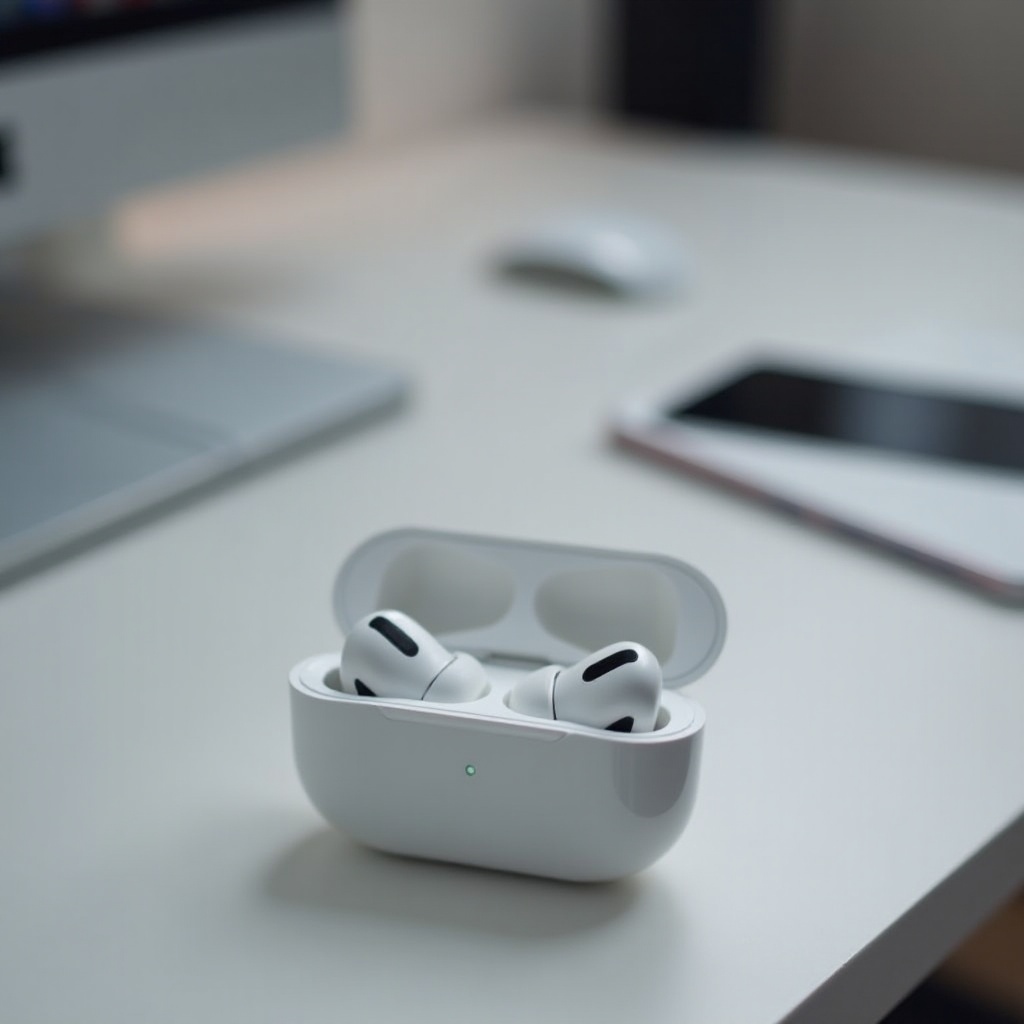
Understanding the AirPod Pro Reset Process
The reset procedure for AirPod Pros is a relatively simple one, intended to iron out minor software and connectivity troubles. The process essentially reverts your AirPods to their factory state, erasing any personalization or prior connections established with other devices.
To initiate a reset:
- Place your AirPods inside the charging case and close the lid.
- Wait approximately 30 seconds.
- Open the case and press the setup button for about 15 seconds until you see an amber, then a white light.
These straightforward steps should leave your AirPod Pros in a reset state, ready to restore connections. However, certain impediments may obstruct successful resets.
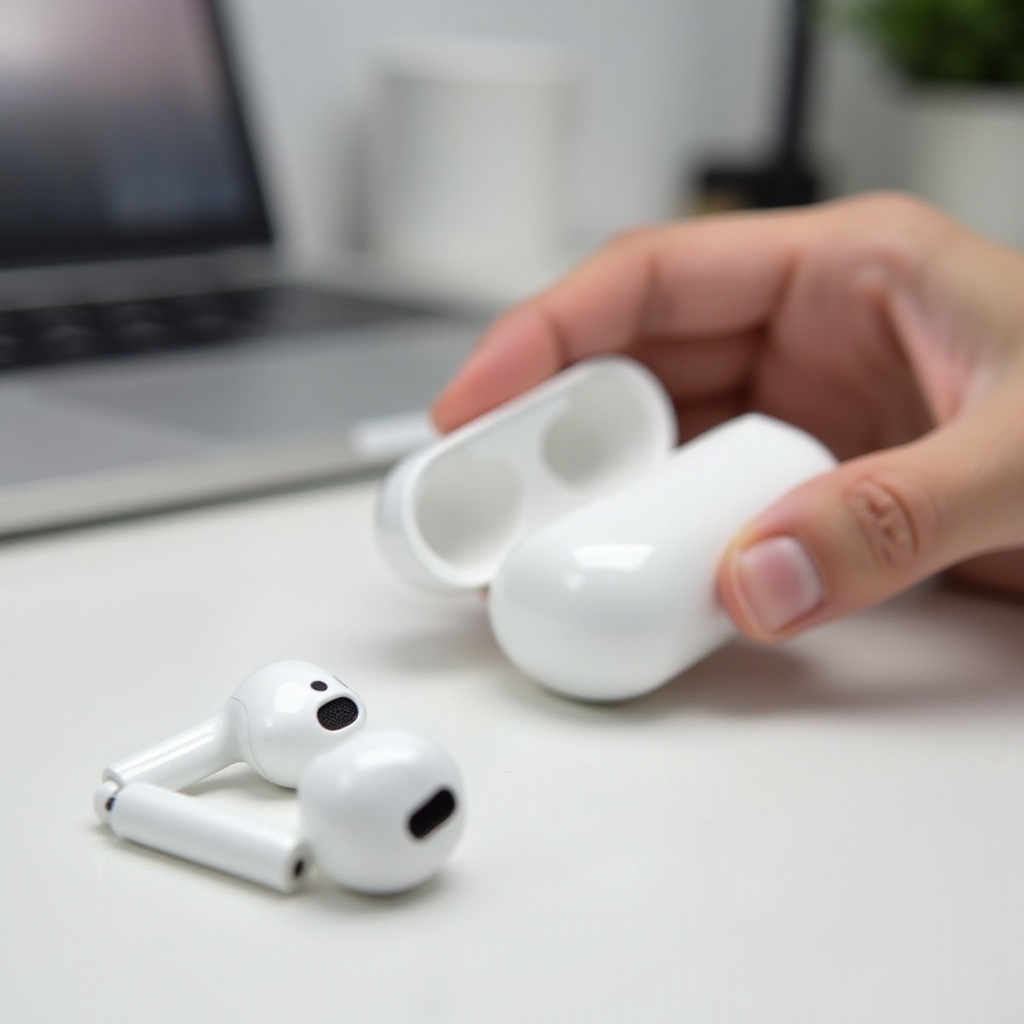
Common Reasons AirPod Pros Won’t Reset
Battery Issues
Among the chief culprits behind unsuccessful resets are battery problems. Both the AirPods and their charging case need ample charge to undergo the reset. Inadequate charging can stall or disrupt the reset process.
Software Glitches
Software malfunctions, including outdated firmware or corrupted settings, can hinder resets. Ensuring your AirPods are running the latest firmware is crucial for staving off such glitches.
Connection Problems
Problems in the AirPods’ connection with your device can also cause reset issues. Bluetooth interference or failure to unpair old connections might prevent a proper reset.
Identifying these root causes can significantly ease the troubleshooting process in the following sections.
Step-by-Step Guide to Reset AirPod Pros
Initial Checks
- Verify that both the AirPods and the charging case have enough battery life.
- Check that Bluetooth on connected devices is enabled, then disconnect the AirPods from any device settings if previously paired.
- Inspect the AirPods for potential physical damage.
Hard Reset Procedure
- Return AirPods to their charging case and close the lid securely.
- Wait for no less than 30 seconds before proceeding.
- Open the lid and press the setup button until you notice an amber to white light transition.
- Let go of the button after the light changes.
Confirming Successful Reset
Upon a successful reset, the AirPods’ status light should flash white indicating a state of readiness for new connections. Attempt reconnecting to any device to ensure functionality returns to normal, addressing any persisting problems.
By following these careful steps, a bulk of reset-related issues should be mended. Persisting difficulties may necessitate further troubleshooting approaches.
Troubleshooting Persistent Reset Issues
Checking for Updates
Make sure your Apple devices are updated to their latest OS versions. Regular updates often resolve underlying device incompatibility. Moreover, double-check that your AirPods firmware is current.
Resetting Device Settings
If problems continue, consider resetting the settings on your Apple device. Within device settings, locate ‘Reset Network Settings.’ This action will delete Wi-Fi configurations and Bluetooth histories, while preserving personal data.
Using the Find My Feature
Leverage Apple’s Find My feature to find and detach your AirPods from all current devices. Occasionally, this assists in clearing lingering connection issues, presenting a fresh ground for a successful reset.
These additional troubleshooting strategies are recommended if you’ve hit a roadblock with the regular reset method.
When to Contact Apple Support
Should you find your AirPod Pros still resist resetting even after exhausting all suggestions, reaching out to Apple Support becomes necessary. The underlying issue may root from hardware defects or more intricate software anomalies requiring professional scrutiny. Apple’s support ranges from online help to in-store Genius Bar appointments, ensuring a comprehensive resolution.
Conclusion
Resetting AirPod Pros frequently acts as a remedy for typical performance glitches. Utilizing this guide empowers you to navigate through reset anomalies with confidence while curbing small-scale problems before they snowball. From battery malfunctions and software jams to reaching Apple Support when complexities intensify, this article ensures you’re prepared to reclaim control over your listening pleasure.
Frequently Asked Questions
Why won’t my AirPod Pros reset even after following all steps?
Check if there is enough battery charge and ensure you’re following the hard reset procedure correctly. Persistent issues may require a visit to Apple Support.
Can I reset my AirPod Pros without a connected device?
Yes, AirPod Pros reset through the charging case without needing a device, as long as the reset process — pressing the setup button — is followed accurately.
What are the risks of not resetting malfunctioning AirPods?
Failure to address reset issues can lead to persistent connectivity problems, reduced audio performance, and inability to connect with devices efficiently.