
Introduction
Many iPhone users rely on the flash not only for capturing moments but also as a handy flashlight in everyday life. When the iPhone flash stops working, it can be inconvenient and frustrating. This article explores the reasons your iPhone flash might malfunction and provides clear, step-by-step solutions to resolve the issue. By understanding the cause and troubleshooting your flash, you can determine when it is time to seek professional assistance.

Understanding the iPhone Flash
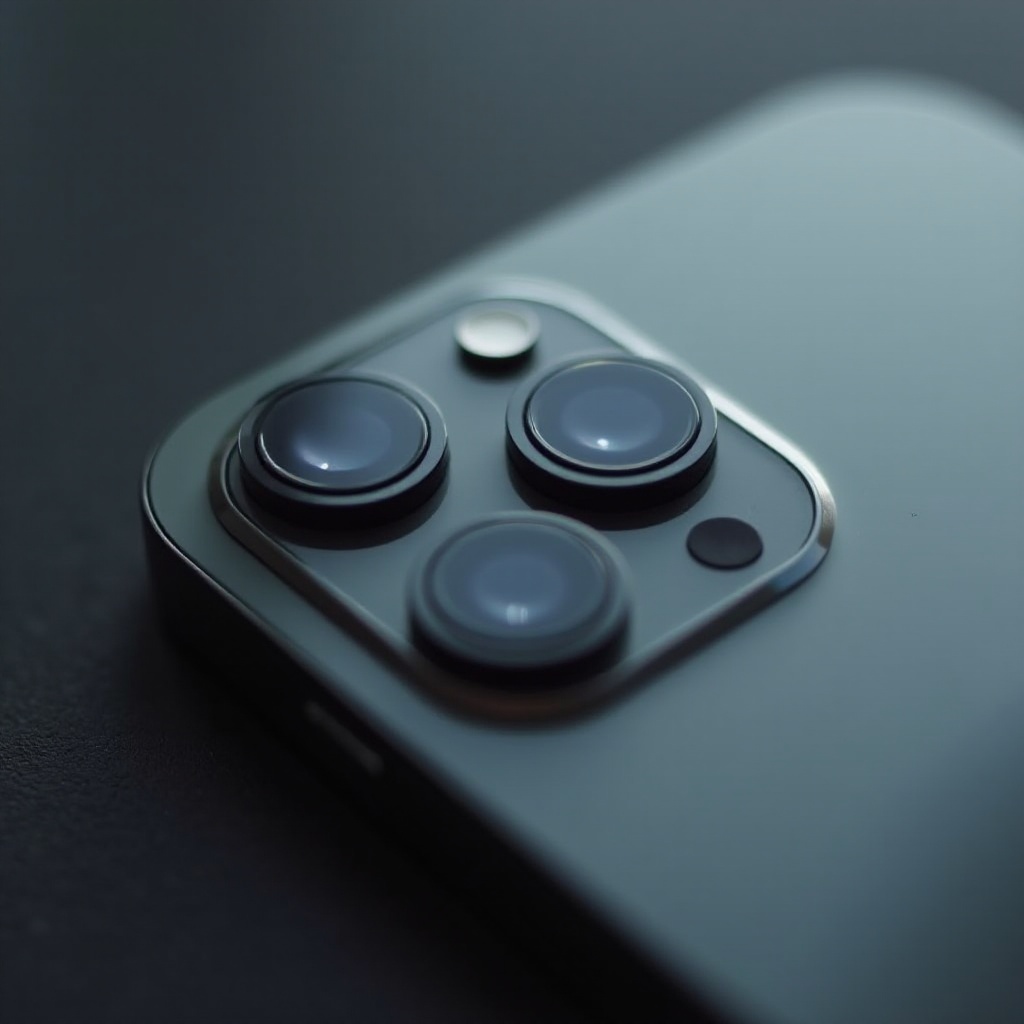
The flash on an iPhone serves multiple purposes beyond photography. It enhances low-light photography and acts as a convenient flashlight. Located near the rear camera, the flash is an LED light source for both photos and videos, providing essential illumination. Maintaining its proper function is vital for practical everyday use and quality imagery. To address any malfunctions, it’s important to understand its mechanics and the common issues that can arise.
Common Causes of iPhone Flash Malfunctions
Various factors can affect your iPhone flash’s performance. Identifying the root cause is crucial in finding an effective solution.
Software Glitches
Software bugs, especially from recent updates or app conflicts, can prevent the flash from functioning properly. Such glitches are typically linked to the operating system or specific applications.
Hardware Issues
Hardware problems, such as physical damage to the flash component or internal circuitry, can cause the flash to malfunction. These issues are more severe and often require professional repair.
Environmental Factors
External elements like extreme temperatures or moisture can impact the function of the flash. iPhones are designed to operate within certain environmental conditions, and deviations might lead to issues.
Recognizing these common factors is the initial step in resolving flash problems. Now, let’s move on to diagnosing the specific issue with your device.
Diagnosing the Problem
Before jumping to solutions, it’s important to accurately diagnose the issue through some basic checks.
Checking Settings and Permissions
Verify that the camera app settings have not inadvertently disabled the flash. Go to Settings > Privacy > Camera and confirm that permissions are correctly configured.
Testing Flash Functionality
Use the Control Center to toggle the flashlight and assess if it works outside the camera app. This can help determine whether the problem is app-specific or affects the entire device.
Through these diagnostic steps, you can pinpoint whether the issue is software-related or stems from hardware malfunctions. Now, let’s explore practical troubleshooting techniques.
Step-by-Step Troubleshooting
To resolve flash problems, follow these troubleshooting steps before considering more complex measures.
-
Verify Camera App Settings: Open the camera app and check the flash settings. Ensure the flash is set to ‘Auto’ or ‘On,’ rather than ‘Off.
-
Restart Your iPhone: A simple restart can occasionally resolve temporary glitches affecting the flash’s function.
-
Update iOS to the Latest Version: Running an outdated iOS can lead to system incompatibilities. Update by navigating to Settings > General > Software Update.
-
Perform a Soft or Hard Reset: If a regular restart doesn’t help, try a soft reset. Should issues linger, consider a hard reset, keeping in mind this will reset all settings to default.
These steps should resolve minor software-related problems. Should the issue persist, consider the advanced solutions discussed next.
Advanced Solutions for Persistent Issues
If the basic steps fail to resolve the problem, more in-depth solutions may be needed.
Restoring iPhone to Factory Settings
Restoring your iPhone to factory settings erases all data and returns the device to default configurations, potentially resolving persistent software issues. Exercise caution, as this should be a last resort.
Checking for Third-Party App Interference
Evaluate any recently installed apps that might impact camera functionality. By temporarily uninstalling these apps, you can check if flash functionality is restored.
If the problem persists, it might indicate deeper underlying issues, suggesting professional intervention might be necessary.
When to Seek Professional Help
Some problems go beyond basic fixes and necessitate expert intervention.
Recognizing Hardware-Related Issues
If the flash remains non-responsive after all troubleshooting attempts, it might be indicative of internal hardware damage. Avoid attempting DIY solutions, as these can exacerbate the issue.
Apple Support Options
Consider visiting an Apple Store or contacting Apple Support. They can efficiently diagnose and fix complex hardware issues, often covered under warranty or repair services.
Having explored all possible avenues, it’s important to know when to seek professional help to ensure your iPhone functions optimally.
Conclusion
By understanding why your iPhone flash isn’t working and how to address it, you can save both time and frustration. From checking settings to consulting professionals, this guide equips you with practical solutions. Keeping your iPhone updated and properly maintained can prevent future issues, and knowing when to seek expert assistance ensures your device remains in peak condition.
Frequently Asked Questions
Can low battery affect my iPhone flash?
Yes, a low battery can restrict power to the flash, causing it to not function. Ensure your device is sufficiently charged.
Does using third-party apps cause iPhone flash issues?
Yes, certain third-party apps might conflict with flash functionality. Monitor app behavior and test flash performance with and without these apps.
How do I reset my iPhone flash settings?
Resetting flash settings involves resetting all settings on your iPhone. Navigate to Settings > General > Reset > Reset All Settings. This will return all custom settings, including the flash, to factory defaults.