Changing the country setting on your iPad can be essential for unlocking region-specific content and accessing apps and services not available in your current location. Whether you’re relocating or just exploring unique digital landscapes, our guide will help you make this transition smoothly and effortlessly, enabling you to fully utilize your iPad’s potential.
Understanding iPad Country Settings
The country setting on your iPad is more than just a geographical adjustment. It determines the range of services, apps, and digital content you have access to. Apple offers different services and app versions in different countries due to licensing agreements and legal requirements. Understanding this is crucial, as changing the country setting modifies your App Store selections, Apple ID data, and sometimes even available system features.
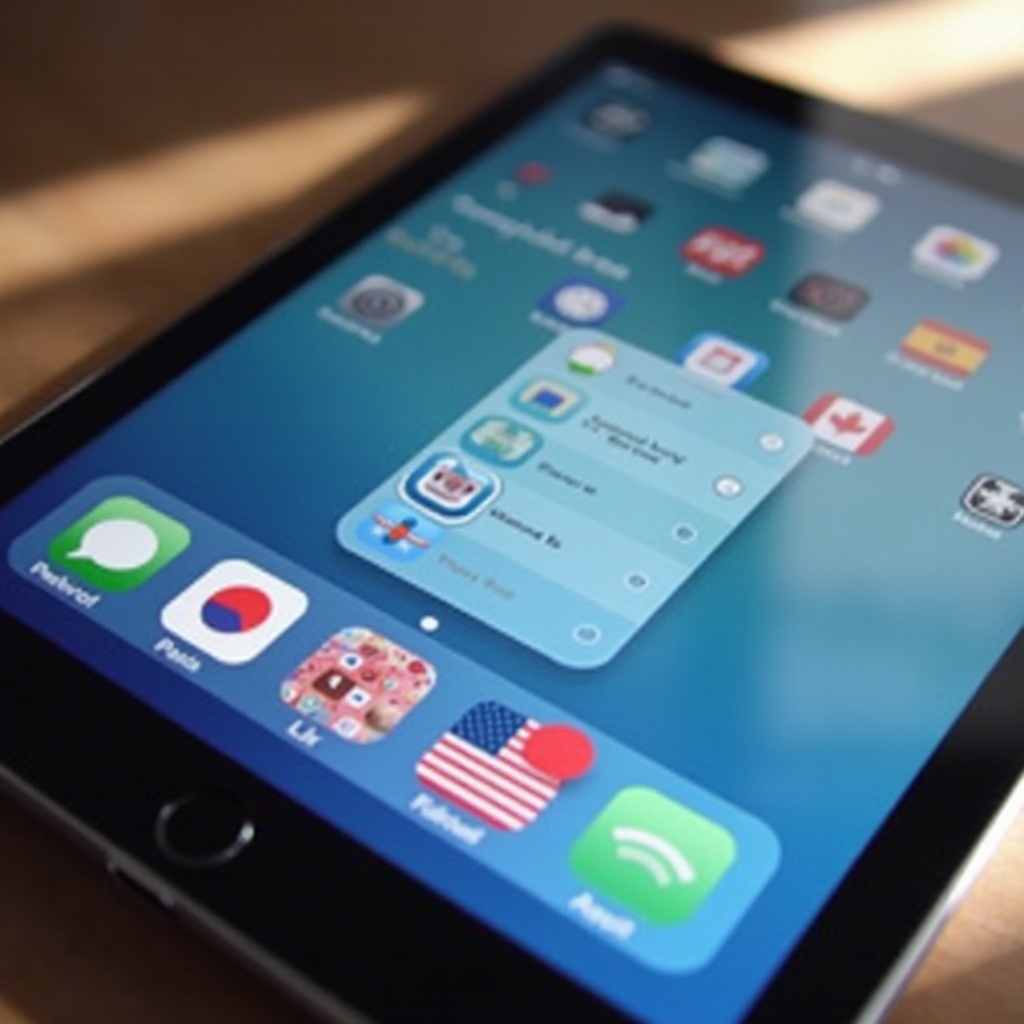
When you switch the country setting, you virtually relocate your device to the new region, unlocking territory-specific apps and content. This change is vital for those who regularly travel or geographically move, ensuring seamless digital experiences without restrictions.
Reasons to Change Your iPad Country
Several compelling reasons might prompt you to adjust your iPad’s country settings:
- Relocating Internationally: Moving to another country necessitates adapting your digital settings to align with your new region.
- Accessing Regional Apps: Some applications and features are exclusively available in specific countries, providing unique offerings that aren’t accessible elsewhere.
- Exploring New Media: Experience and enjoy local content by changing your settings to match the country’s digital output.
Understanding why you might need to make this change helps streamline the transition process, ensuring you harness all the advantages of your new digital environment.
Preparing for the Change
Adequate preparation is necessary for a smooth transition in changing your iPad’s country settings. Here’s how you make sure everything is ready:
- Back Up Your Data: Secure all your information and media by backing up your iPad via iCloud or a physical backup, ensuring no loss of data.
- Verify App Availability: Navigate the new country’s App Store to confirm your essential apps are accessible in the new region, as not all applications are globally available.
- Check Payment Methods: Verify that your payment methods are valid for the new country, adhering to its specific billing regulations and requirements.
Preparing carefully provides continuity in your iPad’s usability and accessibility, reducing issues post-change.
Step-by-Step Guide to Changing Your iPad Country
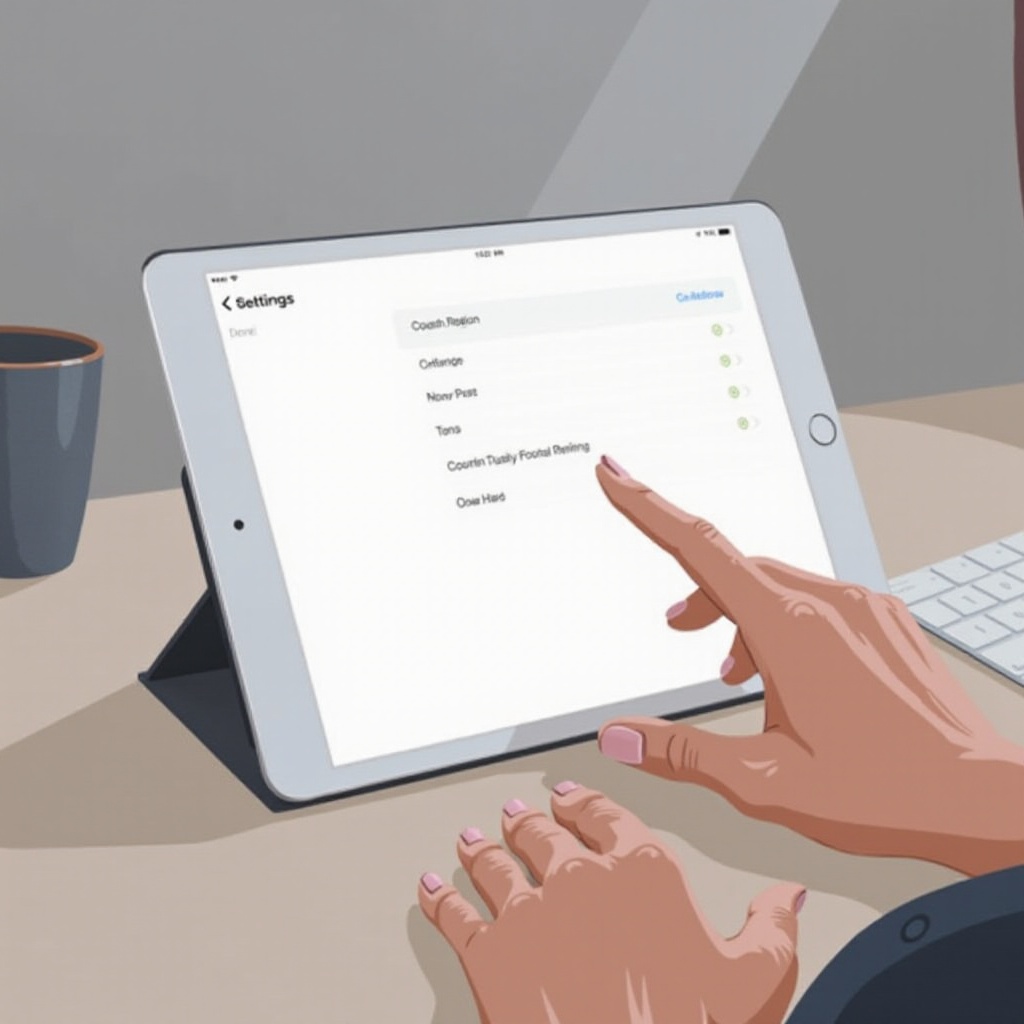
Equipped with preparation, you can now proceed to change your iPad’s country settings. Follow these simple steps:
- Go to Account Settings:
- Open the Settings app on your iPad.
- At the top, tap your Apple ID banner and then select ‘Media & Purchases.
-
Choose ‘View Account,’ signing in if prompted.
-
Update Your Country/Region:
- Tap ‘Country/Region’ to select your new location.
-
Acknowledge Apple’s Terms & Conditions, then continue with the process.
-
Modify Billing Information:
- Update your address to reflect your new country.
- Add a valid payment method available in the new region.
Following these steps ensures a smooth transition, maintaining your device’s functionality and access to purchased content.
Managing Purchases and Subscriptions Post-Change
Once you’ve changed your country settings, it’s crucial to manage your purchases and subscriptions:
- Existing Subscriptions: Evaluate your current subscriptions as some might not be accessible in the new region. It’s wise to check renewal policies and subscription adjustments.
- Content Accessibility: Previously purchased media usually remains available, but some may not function as expected due to regional restrictions.
Staying informed about these changes allows you to manage your digital library effectively.
Troubleshooting Common Issues
Despite careful preparation, issues may arise during the transition:
- Error Messages: Double-check your account information and payment methods for accuracy to resolve any error messages you receive.
- Apple Support: Persistent problems might require assistance from Apple Support. Be sure to have all personal data and receipts handy for troubleshooting.
Being aware of these common challenges and how to handle them keeps the process as hassle-free as possible.
Conclusion
Altering your iPad’s country settings can greatly enhance your user experience by matching it to your current location’s digital environment. With thorough preparation and precise execution, you secure a seamless transition, allowing you to explore new apps, features, and content. Ready your iPad for its new regional potential, and enjoy its improved functionality in line with your locale.
Frequently Asked Questions
What happens to my apps when I change my country on iPad?
Your existing apps generally remain on your device, but updates and new downloads will depend on their availability in the new region’s App Store.
Can I change my iPad country without a credit card from the new region?
Some regions do not require a credit card, but it is essential to have a valid payment method compatible with the new country to fully access all services.
How often can I change my iPad country settings?
There’s no formal limit set by Apple on how often you can change regions, but frequent changes can lead to account verification checks or restrictions.